RESTORE / MIGRATION
Restore purchases, reinstall and move to a new device
Restore the app first, then restore its configuration. These are separate steps: being able to redownload from purchases does not mean a new device already has the subscriptions, rules and settings from the old one.
Redownload from purchases on iPhone / iPad
Open App Store → Account → Purchased, find Shadowrocket and tap the redownload button. On some system versions, this section may be called Apps or My Apps; open the purchase history for the current account. Use the Apple ID that made the original purchase. If the app is missing from the list, check the account and region before considering another purchase.
iPhone / iPad cost $2.99 as a one-time App Store purchase. Devices using the same Apple ID share one purchase, so you do not need to pay again after changing or resetting a device. Mac, Windows, Android and Linux versions are free. Restoring still depends on account records, store availability and device compatibility; refer to the App Store listing for system requirements.
Restore subscriptions and local rules
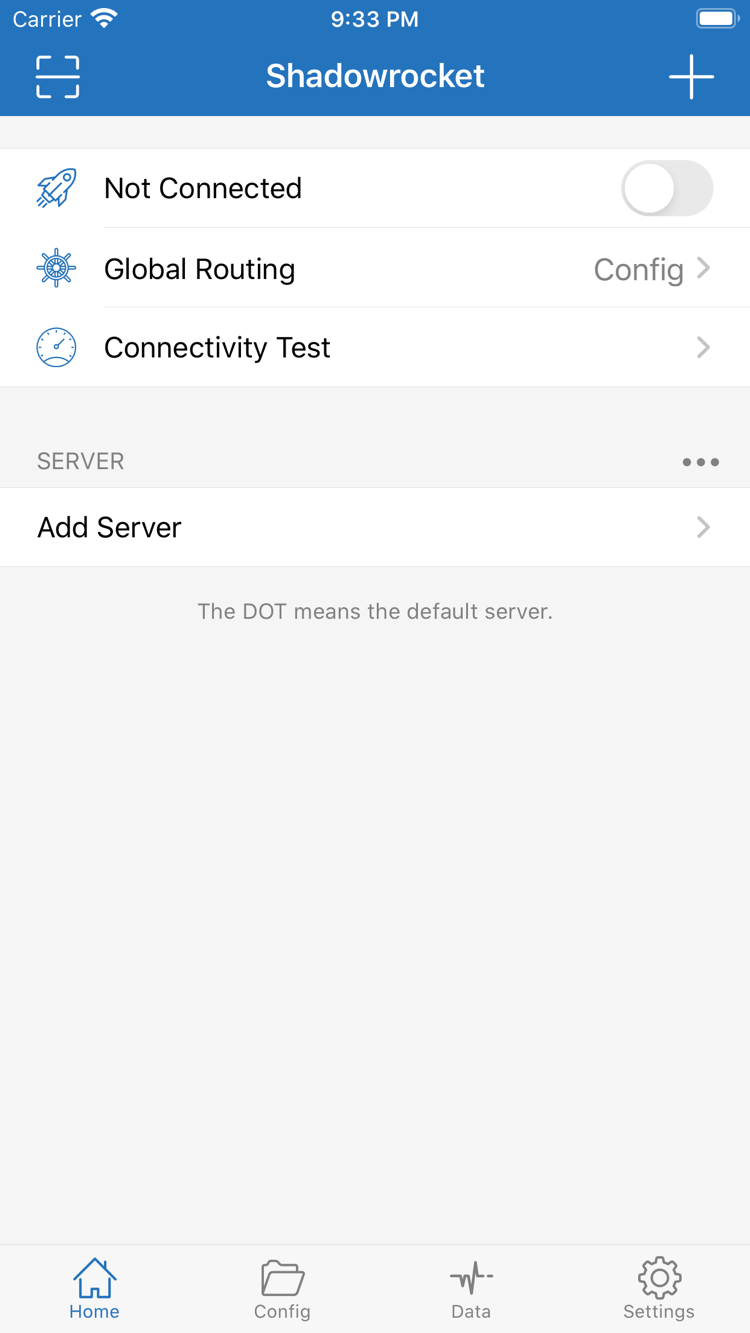
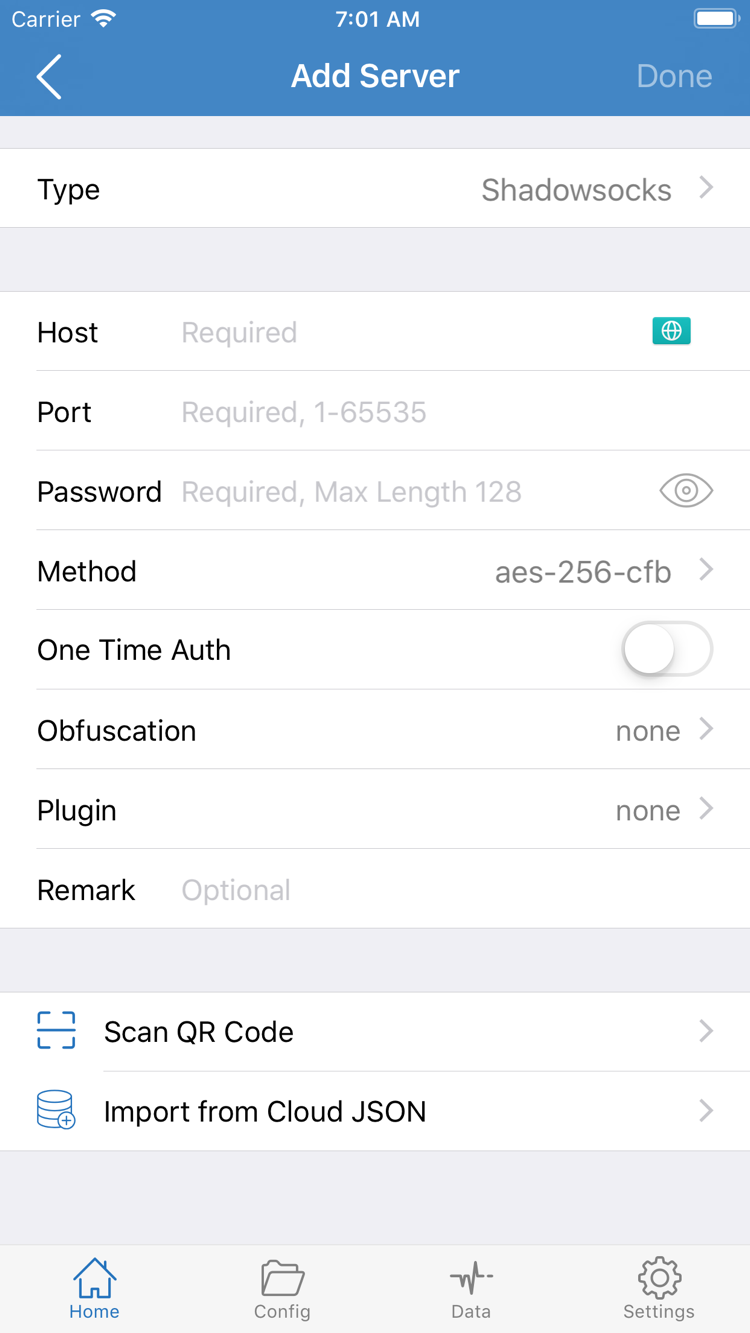
After installation, import your own subscription or server details again. If you saved a configuration file, check that its rules and policies match the current server names. Do not assume an old configuration contains valid, current connection details. If you need your existing subscription link again, get it from your service provider.
When changing devices on Mac, Windows, Android or Linux, download the package for the new device. In particular, if moving from an Intel Mac to an Apple Silicon Mac, check the architecture again instead of reusing the installer saved on the old device. Keep necessary configuration before migrating; afterward, test a known-working server first, then restore custom rules one by one to distinguish data issues from settings issues.